How to Convert PDF to Word Online — Free Guide 2026
Converting PDF files to editable Word documents is one of the most common tasks in today's digital workplace. Whether you're editing a contract, updating a resume, or repurposing content from a report, knowing how to convert PDF to Word quickly and accurately can save you hours of manual retyping. In this comprehensive guide, we'll walk you through the best free methods available in 2026 — including our own online converter at PDF Doc — and share expert tips on preserving formatting, handling scanned PDFs, and keeping your files secure.

Why Would You Need to Convert PDF to Word?
PDF (Portable Document Format) was designed to look the same on every device. That's great for sharing, but terrible for editing. Word documents (.docx), on the other hand, are fully editable in Microsoft Word, Google Docs, LibreOffice, and dozens of other applications.
Here are the most common reasons people convert PDF to Word:
- Editing contracts and legal documents — make changes without recreating the entire file
- Updating resumes and CVs — quickly tweak content for different job applications
- Repurposing report content — extract text and tables for presentations or new documents
- Collaborating with teams — Word's track changes and commenting features make collaboration easier
- Accessibility compliance — Word documents are easier to make accessible than PDFs
How to Convert PDF to Word Online for Free
The easiest way to convert a PDF to Word is using an online tool. No software installation required — just upload, convert, and download. Here's how to do it with PDF Doc's free converter:
Step 1: Upload Your PDF File
Go to our PDF to Word tool and drag your PDF file into the upload area, or click "Choose File" to browse your device. We support files up to 10 MB on the free plan and up to 100 MB on the Pro plan.
Step 2: Wait for the Conversion
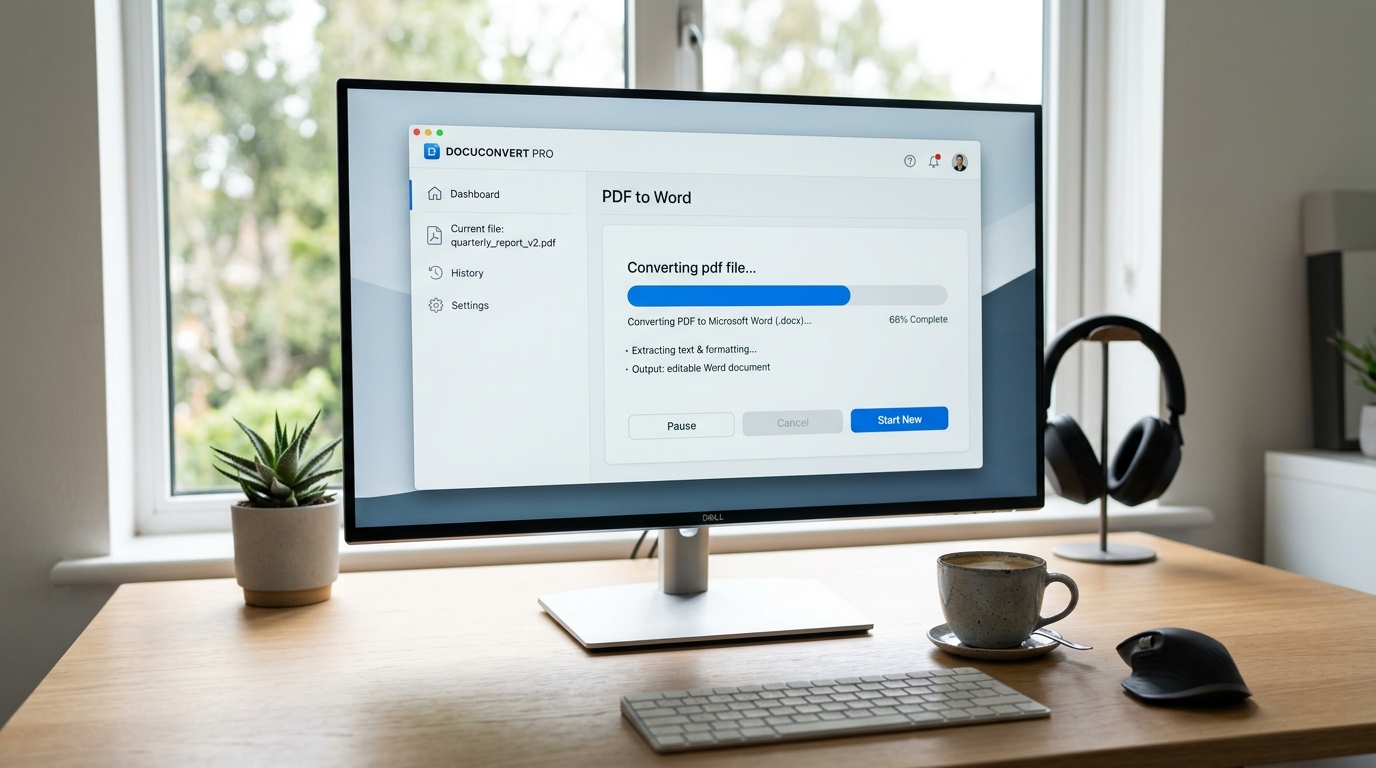
Our conversion engine processes your file in seconds. Complex documents with images, tables, and multi-column layouts may take slightly longer. You'll see a real-time progress indicator while the conversion runs.
Step 3: Download Your Word Document
Once the conversion is complete, click the download button to save your .docx file. The file is available for 24 hours, after which it's automatically deleted from our servers for your privacy.
Tip: For best results, make sure your PDF contains actual text (not just scanned images). If your PDF is a scanned document, you'll need OCR — keep reading to learn how.
What Is OCR and When Do You Need It?
OCR (Optical Character Recognition) is a technology that recognizes text within images. When you scan a paper document to PDF, the resulting file is essentially a collection of images — not selectable text. OCR analyzes these images and converts the visual characters into machine-readable text.
You need OCR when:
- Your PDF was created by scanning a physical document
- You can't select or copy text from the PDF
- The PDF was created from a photograph or screenshot
How to Preserve Formatting During Conversion
One of the biggest challenges in PDF-to-Word conversion is maintaining the original formatting. Here are proven tips to get the best results:
1. Use a High-Quality Source PDF
PDFs created from digital sources (Word, Google Docs, LaTeX) convert much better than scanned documents. If you have access to the original file, export it as a clean PDF before converting.
2. Check for Embedded Fonts
Some PDFs use custom or embedded fonts that may not be available on your system. After conversion, review the document and replace any missing fonts with similar alternatives.
3. Handle Tables Carefully
Complex tables with merged cells or nested content can be tricky. After conversion, you may need to adjust column widths or cell alignment manually. For heavily formatted tables, consider using our PDF to Excel converter instead.
4. Review Images and Graphics
Most converters handle inline images well, but complex vector graphics or overlapping elements may shift position. Always review the converted document before sharing it.
Online vs. Desktop: Which Conversion Method Is Better?
Both online and desktop tools have their advantages. Here's a quick comparison:
| Feature | Online Tools | Desktop Software |
|---------|-------------|-----------------|
| Cost | Free or low-cost | Often expensive licenses |
| Speed | Instant, no installation | Requires download and setup |
| File size limits | Usually 10-100 MB | Unlimited |
| Privacy | Files uploaded to server | Files stay on your device |
| Batch processing | Limited on free plans | Usually included |
| OCR support | Varies by tool | Usually included |
For most users, online tools like PDF Doc offer the best balance of convenience, speed, and quality. Desktop software makes sense only if you regularly process very large files or have strict data residency requirements.
As TechRadar notes in their 2025 PDF converter roundup, cloud-based converters have closed the quality gap with desktop tools, making online conversion the preferred choice for the majority of users.
Can You Convert PDF to Word on Mobile?
Absolutely. Modern online converters work in any mobile browser — no app needed. Here's how:
On iOS, the file saves to your Files app. On Android, it goes to your Downloads folder. From there, you can open it in Microsoft Word, Google Docs, or any compatible editor.
Is It Safe to Convert PDF to Word Online?
Security is a valid concern when uploading documents to any online service. Here's what to look for:
- HTTPS encryption — ensures your file is encrypted during upload and download
- Automatic file deletion — converted files should be deleted after a set period
- No account required — tools that work without registration minimize data exposure
- Privacy policy — read it to understand how your data is handled
- All transfers are encrypted via TLS 1.3
- Uploaded files are automatically deleted within 1 hour
- Processed files are removed after 24 hours
- We never share, sell, or analyze your document content
What Other Formats Can You Convert From PDF?
PDF to Word is just the beginning. Modern conversion tools support dozens of format combinations. Here are the most popular ones available on PDF Doc:
- PDF to Excel — extract tables and data into spreadsheets
- PDF to Image — convert pages to PNG or JPG
- Image to PDF — combine photos into a single PDF
- Merge PDFs — combine multiple PDF files into one
- Compress PDF — reduce file size without losing quality
- Split PDF — extract specific pages from a PDF
Frequently Asked Questions
Is PDF to Word conversion really free?
Yes. PDF Doc offers 3 free conversions per day with no account required. Files up to 10 MB are supported on the free plan. For unlimited conversions and 100 MB file support, check our Pro plan.
Will the formatting be preserved exactly?
In most cases, yes — especially for text-based PDFs created from digital sources. Complex layouts with unusual fonts, overlapping elements, or intricate tables may require minor manual adjustments after conversion. Our engine is optimized to preserve formatting as closely as possible.
Can I convert a password-protected PDF?
You'll need to remove the password first. If you know the password, open the PDF in any viewer, remove the protection, save it, and then upload it for conversion. We do not bypass PDF security for legal and ethical reasons.
How long does the conversion take?
Most files convert in under 10 seconds. Large files (50+ MB) or documents with OCR processing may take up to 60 seconds. You'll see a real-time progress indicator during conversion.
Do you store my files?
Only temporarily. Uploaded files are deleted within 1 hour, and converted files are removed after 24 hours. We never access, analyze, or share your document content.
What's the maximum file size?
Free plan: 10 MB per file. Pro plan: 100 MB per file. Most standard documents (contracts, resumes, reports) are well under 10 MB.
Conclusion
Converting PDF to Word online has never been easier or more reliable. With tools like PDF Doc, you can convert files in seconds — for free, directly in your browser, on any device. Whether you're dealing with text-based PDFs or scanned documents requiring OCR, the process is straightforward and secure.
Ready to convert your first PDF? Try our free PDF to Word converter now — no registration required.
Last updated: April 2026. For more document conversion tips and guides, visit our blog.
PDF Doc Team
The PDF Doc team helps millions of users convert, edit, and manage documents online. Our guides combine practical tips with expert insights to help you work smarter with digital documents.